
Cloud, On-Site, or Hybrid: Where Should Your Business Store Its Security Camera Footage?
Security Cameras Dallas Team
Where your video is stored is the start of that question, not the end of it. The choice between on-site, cloud, and a hybrid of both decides where the footage lives, but keeping it safe also depends on whether the system is really recording, whether it survives an outage or a theft, and whether you can get a usable copy out when you need one. This article covers both, the options and the checks that tell you the footage is actually there.
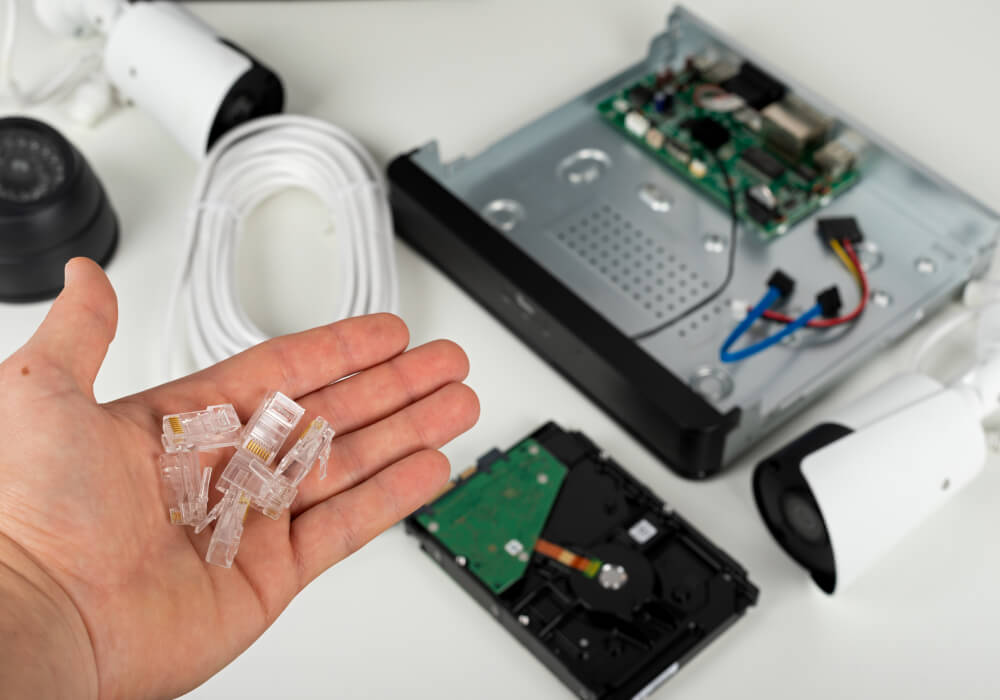
Where your footage can live
A commercial camera system usually records to one of a few places, and most setups are a version of these three.
- On-site: a recorder, an NVR or DVR, on your property, writing to hard drives in the building. You own the footage and it does not depend on the internet, but it sits in one location.
- Cloud: the footage travels over your internet connection to the provider’s data center, where you reach it from an app or a browser. The copy is off the property, but it depends on your upload speed and a recurring fee.
- Hybrid: a recorder on site plus a copy kept in the cloud, so you have a local copy for speed and an off-site copy for safety.
Cameras can also record on their own, to a memory card inside the camera, which some systems use as the main storage and others as a local buffer, so a setup does not always include a central recorder. Treat these as the common shapes, not a strict list.
One point clears up a lot of confusion before we go further. More than one drive in a recorder is more storage, not automatically a safety net. Surviving a failed drive without losing footage takes a supported redundant configuration, such as RAID, where the recorder is set up so one drive can fail and the recording keeps going. Surviving a theft, a fire, or a deletion takes something different, a copy kept somewhere else. Redundancy, a backup, and a failover recorder that takes over if the main one dies each solve a different problem, and a system can have one without the others.
How much storage you need, and how you confirm it
How many days a system holds comes down to how much the cameras write and how much usable space the storage has. What the cameras write, the bitrate, rises with resolution, frame rate, and the codec, and also with how much is happening in the scene. A busy view writes more than a quiet one, and low light writes more than good light, because image noise in the dark pushes the bitrate up. Recording all the time writes more than recording on motion.
A storage calculator gives you an estimate from those inputs, and it is the right place to start. It is not the finish, though. The way to know your real retention is to check the actual recording settings once the system is in, and then measure how much space the footage is using after it has run through normal days and nights. That is when you find out whether the thirty days on the quote is really thirty days, or closer to twenty, because the scenes are busier or the quality higher than the estimate assumed. How many days you should keep is a decision for your business and what you might need to look back on, not a number to copy from anyone else.
Who knows when the recording stops
This is the part most systems are sold without, and it matters more than any single storage choice. A recorder can fail while the cameras still show live pictures on the screen. A drive dies, the storage fills and stops writing, a camera drops off the network, or the cloud uploads quietly fail, and nothing on the live view tells you. The first you hear of it is the day you go looking for footage that was never saved.
Good systems can raise an alert for these, a failed or failing drive, missing or unmounted storage, a camera that has gone offline, storage that is full, or a cloud upload that is not completing. Not every product supports every one of these, so it is worth asking which alerts a system actually sends. And an alert only helps if it reaches a person who will act on it, so settle who receives them, you, a manager, or whoever supports the system, before you rely on it. Knowing the moment recording stops is the difference between a short gap and a month of footage that was never there.
What happens when the internet or the power goes out
When the internet drops, a recorder on site keeps writing to its own drives and does not care about the connection. A system that sends everything straight to the cloud with no local recording is a different story, the footage during the outage is gone unless the camera held it locally and sends it afterward. A hybrid system can fill the cloud back in once the connection returns, but only if that backfill is supported and switched on, only if the local storage held the footage, and only if there is enough spare upload speed to catch up without falling behind again.
This also changes what a cloud copy really protects after a theft. Only footage that had already finished uploading is safe off-site. If uploads run on a schedule, or the connection was slow, the most recent clips, often the ones you want most, may still have been sitting on the recorder when it was carried out. It is worth knowing how current the off-site copy stays.
Power is its own problem, and backing up only the recorder is not enough. A recorder cannot save a camera that has lost power, so the cameras and whatever feeds them, usually a PoE switch, have to stay up too, and for anything cloud or remote so do the router, the modem, and the internet service. A battery backup also only lasts as long as its runtime, so it should be sized to the length of outage you actually want to ride through, not just to keep the recorder on for a few minutes.
What your cloud backup actually includes
If you are counting on a cloud copy, be specific about what is in it, because footage backed up to the cloud can mean very different things. Ask which cameras are actually sent up, since it is often a chosen few rather than all of them. Ask whether the cloud copy records all the time or only on motion or events, because a motion-only copy can miss the minute before and after, which is often where the context is. Ask what image quality goes up, since some systems send a lighter stream to save bandwidth and cost. And ask when uploads happen and how long each copy lasts, the local one and the cloud one, so you know how far back each reaches. A selective, motion-only, lower-quality cloud copy can still be exactly right for a business, but it is a trade, not a free second copy of everything.
What to test before you accept the system
Having storage configured is not the same as knowing the footage is recoverable, and the only way to be sure is to try it before you sign off.
- Pull up a recording from a few days ago, not just the live view, and confirm it is there at the quality you expect.
- Export a clip and play it on a different computer. Find out whether it plays on its own or needs the maker’s proprietary player, since that matters the day you hand a copy to the police or an insurer.
- Check that the date, time, and time zone stamped on the footage are correct, because a wrong clock can make a clip useless as evidence.
- Learn how to lock or protect an incident so the system does not record over it. Your normal footage rolls and overwrites, and an incident you need to keep has to be saved out or flagged before that happens.
- If the system has health alerts, confirm they actually fire and reach the right person, rather than assuming they are on.
Who controls it, and what happens later
Storage is also about who can reach the footage and who owns the way in. With cloud storage, access runs through the provider’s app with per-user permissions, so each person can have their own access and you remove only theirs when they leave. With an on-site recorder, remote access should run over a secure connection such as a VPN rather than by opening the recorder to the internet, which is how camera systems get exposed, something we go into in how to watch your business cameras from your phone, safely.
A few ownership questions are worth settling at the start, because they are awkward to fix later. Make sure the main administrator account is in the business’s name, with your email and phone for recovery, not the installer’s, so you control who else gets in. Confirm you can export your own recordings without having to call the installer. And ask what happens if a subscription or a licence lapses, since on some systems the cloud access, and occasionally a feature on the recorder itself, can stop until it is renewed, and you want to know whether you can still get your footage out if you ever change providers. These are the same kind of questions worth asking before you hire anyone, the sort we laid out in the questions to ask before you hire a security camera company.
The real cost over time
Cost is usually pitched as a one-time purchase for on-site against a monthly bill for cloud, but neither captures what you actually spend over the life of the system. An on-site system still has hard drives that wear out and get replaced, support or service when something fails, and a battery backup whose batteries need swapping every few years. A cloud or hybrid system has its subscription, and sometimes per-camera or per-feature licences on top. Over three to five years those running costs are what separate the options, far more than the price on the first invoice, so the comparison that matters is the few-year total against real quotes, not the sticker on day one.
So which fits your business
There is no default answer, because each option is protecting against a different thing. If the risk you care about is cost and simple ownership on a single site, an on-site recorder can be enough, and adding even a small cloud copy of the cameras that matter covers you if it is stolen. If you run several locations, or several people need access, cloud tends to fit the way you actually work. If losing footage to either an outage or a theft would hurt, a hybrid gives you both copies. The right choice follows your sites, your risks, and what you need to be able to recover, which is a conversation worth having before a single camera goes up, and the kind of plan behind every commercial camera system we install in Dallas.
Expert Tip
Before you accept the install, ask the technician to pull up a clip from a few days ago, export it to a USB drive, and play it on a different computer in front of you. That single test proves the footage is recording, going back as far as promised, and usable off the system, which is not something a screen full of live pictures can tell you.
Not sure which fits your business?
The team at Security Cameras Dallas will match the storage to your cameras, your sites, and the footage you need to be able to recover, set up on-site, cloud, or hybrid, and show you in writing where your video lives, how long it is held, what the system does if a drive or a connection fails, and how you get a usable copy out.
Common questions about business camera storage
Will my cameras keep recording if the internet goes down?
A recorder on site keeps recording to its own drives through an outage. A system that sends everything to the cloud with no local recording loses that stretch unless the camera stored it locally and uploads it later.
What happens to my footage if the recorder is stolen?
Only the footage already uploaded off-site is safe. A cloud or hybrid copy helps, but the most recent clips may still have been on the recorder, so it is worth knowing how current the off-site copy stays.
How do I know the system is actually recording?
Live pictures on the screen do not prove footage is being saved. Rely on the system’s health alerts for drive and upload failures, and check now and then that older recordings are really there.
How much storage does a business camera system need?
It depends on the cameras, resolution, frame rate, recording schedule, scene activity, and codec. Size it with a calculator, then confirm the real figure by checking the settings and measured usage after it has run.